Create completely personalized Destiny Matrix PDF reports.
Learn every workflow in Hedomi Matrix PDF Studio v3.9: calculate individual and compatibility matrices, build your own interpretation library, design unique pages and export client-ready PDFs.
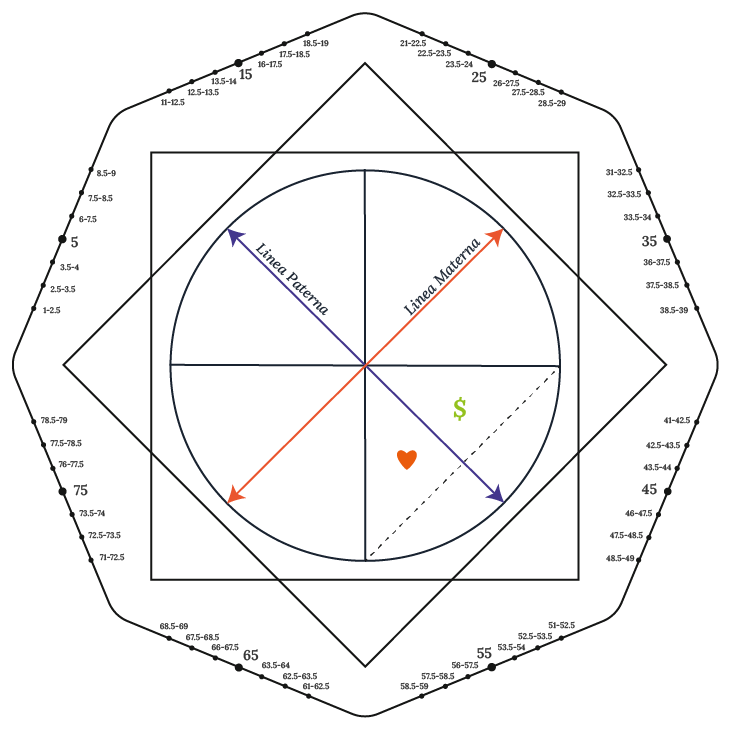
Two independent chart designs and corresponding report content.
Sections, 22 energies, programs, annual readings and content variations.
Custom artwork, typography and text with JSON export and import.
These instructions are based on the v3.9 source project and earlier tested features. The Mac deliverable currently supplied is a build kit, not a precompiled DMG. Some PDF and uninstall behavior still requires verification in an installed app before commercial release. This guide distinguishes intended behavior from confirmed results.
Installation and supported platforms
The Matrix PDF Studio is an Electron-based desktop application. The source ZIP is different from a compiled installer. Distributors should provide the appropriate compiled package to end users.
Windows desktop
Use the compiled 64-bit Windows installer (.exe). Close the app before updating. Keep a JSON backup before uninstalling or replacing versions.
Intel and Apple Silicon
The macOS source kit includes build scripts and support for Intel and Apple Silicon. A tested, ready-to-install .dmg is not included in the source ZIP and must be built on macOS or compatible CI.
- Back up an existing projectIn an older version, open Backup & Data and export JSON before updating.
- Install the compiled applicationRun Setup on Windows, or the tested Mac package when provided by your distributor.
- Select the interface languageAt first launch, choose English, Portuguese, Spanish, German, Russian or Ukrainian.
- Generate a test reportBefore client use, verify a sample PDF, custom fonts, images, footer and text selection.
Building an unsigned Mac DMG is not equivalent to a notarized commercial release. Apple security warnings may occur. Compile, sign, notarize and test on both architectures before advertising a ready-to-install Mac version.
First PDF: a safe eight-step workflow
Start with a short Single report and one custom section. Then repeat with Couple, a section scoped to Compatibility, and an actual `_3` position. This isolates content-selection problems from visual problems.
Main navigation and language controls
The left-hand navigation separates data entry from report design and output. Choosing the interface language changes the displayed controls; choosing the report language changes the language used when matching interpretations.
| Area | What you do there |
|---|---|
| New Matrix | Enter names and dates, calculate energies, manage positions and select included sections. |
| Section Editor | Create a section, choose report scope, point/program/annual mode, enter content and control titles. |
| Text Library | Work with legacy interpretations and built-in reference collections. |
| Covers & Design | Configure covers, section backgrounds, transparent charts, point colors, fonts, spacing and footer. |
| AI Translation | Translate saved interpretations into a target language using the configured API. |
| Preview / PDF | Refresh the preview and generate the final PDF. |
| Backup & Data | Export or import a JSON project backup. |
Interface: EN, PT, ES, DE, RU, UK. Report content and section languages: EN, PT, ES, FR, RU, DE where offered. Language selection does not automatically translate your custom interpretations.
New Matrix: client data and calculated energies
Open New Matrix and select Individual or Couple / Compatibility. Then enter the client's name, birth date, report language and optional title. Couple mode adds the second person's name and birth date.
- Set the report modeSingle for one person, Couple for a relationship or compatibility report.
- Enter dates accuratelyThe calculated energies are derived from birth dates. The gender selector affects applicable interpretation variants (not the birth-date input itself).
- Click Calculate MatrixThe built-in calculation generates position codes and energies from 1 to 22.
- Review positionsUse Add All Calculated Positions or add a position manually with its code, energy and section label. Manual entries can be edited or removed.
- Choose included sectionsUse the checklist below the calculations to determine what should enter the PDF. Chart placement is configured separately.
Changing a circle's X/Y position or HEX color never changes the underlying energy. A point named n3_3 may have a different energy from n3; the design coordinates can still be identical.
Single vs Couple / Compatibility
These modes share the same report builder but use different calculated positions and chart templates. The Couple report is intended to show one compatibility chart, not individual charts for Person 1 and Person 2.
| Setting | Single | Compatibility |
|---|---|---|
| Data | One name and birth date | Two people and two birth dates |
| Chart values | n1, n2, n3 etc. | n1_3, n2_3, n3_3 etc. |
| Transparent artwork | Independent Single PNG | Independent Compatibility PNG |
| Editor choices in v3.9 | Only Individual and Compatibility; the Person 1 / Person 2 chart-editor choices have been removed. | |
| Section scope | Individual or Both | Compatibility or Both |
Previous development builds generated duplicate charts, omitted sections or rendered an unstyled chart. The v3.9 layout corrects chart-editor options and default positions, but a complete Couple PDF export still needs acceptance testing. Do not assume the version is fully validated without inspecting a fresh export.
How position codes work
Each point has a position identifier and a calculated energy (1–22). The position tells the software which interpretation belongs there. The energy determines which entry is selected from the library.
n3
Third chart position for one person's report.
n3_2
Second person's calculated position; retained as internal calculation data but not a separate chart-editor mode.
n3_3
Third compatibility-chart position. This is the one the Couple interpretation should read.
In Couple reports, the rendered chart and position-based interpretations should use the _3 family. A position may use the same X/Y coordinates as Single while displaying a different calculated number.
In the legacy text library, * is available for an energy's default text. A position-specific entry is usually preferable for professional reports. For custom sections, follow the position and section scope controls so content does not unintentionally flow between report types.
Section Editor: build complete, reusable sections
Each section can contain a title, category, type, positions, language, a local library of interpretations, cover artwork, content background, title visibility and individual page padding.
- Create a sectionClick New Section and give it a clear name such as Relationship Dynamics or Financial Potential.
- Choose scopeSelect Individual, Compatibility or Both. Scope determines which reports can use the section.
- Select category and interpretation typeChoose the grouping and whether the section reads one position, two-point program, three-point program or an annual energy.
- Choose positions, year and language where applicableWhen the selected mode needs multiple positions, enter their ordered codes. Annual mode requires a reference year.
- Write the interpretation library within this sectionAdd entries for energies 1–22 or for combinations, in the chosen language. Save each entry in the section.
- Customize appearanceSet cover, content background, title visibility and four-sided padding in millimeters.
- Save and reorderClick Save Section. The list allows editing and moving sections up or down. Check the included-section list before generating the PDF.
Section categories
Main Matrix, Chakras, Purposes, Ancestral Lines, Relationships, Money & Career, Programs, Annual Energy and Custom. Categories organize content; they are not a substitute for the report scope setting.
The modern Section Editor keeps interpretations inside the section. The older global Text Library is still available for prior content and reference. Existing projects can include legacy entries; review their matching behavior in a test PDF.
One point, programs and annual energy
| Interpretation mode | Required input | How the library matches |
|---|---|---|
| One position | Position 1 | Read the energy at that position, then use its matching interpretation. |
| Program — 2 positions | Position 1 + Position 2 | Match an ordered pair such as 6-15. |
| Program — 3 positions | Positions 1, 2 and 3 | Match an ordered combination such as 6-15-21. |
| Annual energy | Reference year | Use the period's calculated energies rather than a fixed n position. |
Programs
For two-point or three-point programs, use the interpretation editor's Combination of energies, in point order. Save the text against the precise combination used by the selected position sequence. Reversing the order can change the match.
Annual readings
Select the reference year (e.g., 2027). The available annual modes are three energies (primary, complementary, result) or primary energy only. Calculate the matrix first; the annual calculation is based on perimeter positions and the chosen year rather than a fixed chart point.
If a program or annual section is missing from the PDF, confirm you added the exact language, combination/year, section scope and entries required by that mode.
Interpretation libraries and the 22 energies
In the modern Section Editor, every section owns its interpretation entries. In the older Text Library, you can still save a free-standing entry with report type, position, energy, language, title and body.
Create a section-specific entry
- Select the section's languageEntries are matched by language: English text is not automatically shown in a French report.
- Choose an energyFor one-point sections, create energy records 1 through 22. Choose a combination for program sections.
- Select the gender variation when relevantDefault, Female or Male are available; see the next chapter.
- Add title and bodyWrite your own interpretation; keep paragraph formatting and avoid large unbroken blocks.
- Save the entry, then the sectionReview the count and confirm the saved section remains included in the report.
Built-in reference collections
The project includes optional 22 English energy interpretations from From Negative to Positive, plus 22 child-profile reference entries stored separately. The latter are not intended to be inserted automatically into adult reports. Imported texts can be reviewed and edited.
Importing sample texts is not the same as authoring your own client-specific interpretation. Review accuracy, language, permissions to use supplied artwork and suitability for your professional service.
Gender-specific entries and multilingual reports
The Section Editor provides Default / Female / Male variations for text entries. This is especially relevant to energies 3 and 4 in the application's workflow; use the client-gender selector in New Matrix where needed.
| Control | Purpose |
|---|---|
| Report language | Chooses which saved text language is used in the PDF. |
| Section language | Chooses which language-specific entries and section cover you edit. |
| Gender variant | Choose default, female, or male wording for an entry where appropriate. |
| AI translation | Creates language copies, but they should always be checked. |
Changing the application interface to Russian does not convert a previously saved English interpretation into Russian. To produce a Russian PDF, create or translate and save the Russian content first.
Include, exclude and reorder report sections
In New Matrix → Sections Included in PDF, check each section to include it. You can select all, select none or choose specific sections, then use the arrows to change order. The same inclusion choice appears in Covers & Design for the selected section.
- A section's scope must match the chosen report mode: Individual, Compatibility, or Both.
- The section must be included in the PDF checklist.
- There must be text for the relevant position/energy or program and report language.
- The title and energy-heading visibility settings are separate; hiding either does not remove the interpretation body.
- The chart has its own placement settings and is not controlled solely by section inclusion.
Check both the section's report scope and the selected sections list. Then verify that the saved texts match the calculated _3 compatibility energies rather than only Single positions. This was a known issue in earlier development exports.
Covers, section artwork and content backgrounds
Under Covers & Design you can customize several different image roles. Do not treat them as interchangeable: a page-cover image fills a page, while the transparent chart is placed on top of it as chart artwork.
| Image | Where used | Recommended format |
|---|---|---|
| Main cover | The opening page of a Single report | JPG, PNG or WebP |
| Couple main cover | Separate opening artwork for Compatibility reports | JPG, PNG or WebP |
| Section cover | Opening/background artwork for an individual section | JPG, PNG or WebP |
| Chart page background | The full page behind a chart | JPG, PNG or WebP |
| Chart image | Transparent line drawing behind numbered energy circles | Transparent PNG |
| Content background | Behind the interpretation text, globally or by section and language | JPG, PNG or WebP |
| Final cover | Closing page, optionally by language | JPG, PNG or WebP |
Language-specific design
Some cover and background controls accept a language selector. Upload a translated cover for each report language when your artwork contains words. Otherwise use an image-only cover.
If a page background contains headings or decoration, check the PDF with content placed over it. Avoid overlapping a printed title in the image with the application's optional title overlay.
Couple cover and optional title, names and dates
Compatibility reports can use a separate Couple cover image from the Single cover. The title, names and birth dates should be optional overlays; they are not required when the artwork already contains its own text.
Clean cover
Use your own complete design without title/name/date overlays. This avoids duplicate headings and reduces the risk of overlapping the chart.
Editable labels
Enable the desired overlays individually and configure appearance using the exposed color, font, size, alignment and position controls.
Positioning controls include X and Y percentages and alignment. The actual chart's X, Y and width are configured separately from the cover's title and metadata.
Generate a Couple PDF with an image-only cover and chart on its own page. Confirm the cover does not create a blank page and the PDF includes only one compatibility chart.
Transparent chart & point editor
Go to Covers & Design → Transparent image and matrix point editor. In v3.9 the model selector contains only two choices: Individual Matrix and Couple Compatibility (n*_3). The separate Person 1 and Person 2 editing modes were removed.
Align each circle on your own PNG
The checkerboard indicates transparency in the editor; it is not supposed to appear in the PDF. Select a point, drag it or enter X/Y percentages, then edit its colors.
- Select Individual or CompatibilityThis determines which image, point coordinates and point colors you are editing.
- Upload a transparent PNGUse the file picker. A square image with appropriate margins makes it easier to reuse X/Y coordinates.
- Select the pointChoose a point such as
n3orn3_3from the dropdown. - Set its positionDrag the dot in the checkerboard preview or type precise X and Y percentages with decimal steps.
- Customize colorsSet circle fill, border and number text separately using a color picker or
#RRGGBBtext field. - Restore or copy positionsAvailable actions include restoring the selected point, restoring image/positions/colors, and copying Single positions to Couple when desired.
- Generate a test PDFCompare the circles with the simulator, especially small dots and the central point.
The design project uses approximately 5.4% of chart width for small circles and 9% for large circles, with shared preview/export geometry as its intended behavior. This must be confirmed by a real PDF export for each custom image.
Built-in chart defaults and saved backup positions
Version 3.9 incorporates the approved chart coordinates from a saved project backup. The Single positions and equivalent Compatibility positions share the same base coordinates, such as n3 → n3_3.
- Single points use the base identifiers
n1,n2,n3, etc. - Compatibility points use the corresponding identifiers with suffix
_3. - Custom transparent background PNGs are maintained separately for each model.
- Point colors remain editable independently even if their initial values were copied.
- Previously saved projects may override built-in defaults.
Restore built-in defaults
Back up the current project, open the relevant model in the chart editor and use Restore default positions. Use Copy positions from Single to Couple when you specifically want to synchronize with your current Single adjustments. These actions should not modify calculated energy values.
Installing a newer application may leave user data intact. Its stored chartPointOverrides can override v3.9 defaults. Export the existing project before resetting anything. A freshly installed version with persistent data is not necessarily a clean-default installation.
Place the chart on its own page or over a background
The chart has two layers: the transparent matrix image with circles and the optional chart-page background. Separately adjust its X/Y location, width and title visibility in Covers & Design.
| Setting | Effect |
|---|---|
| Chart placement | Choose the report location, including standalone chart page or over a designated page/section image where available. |
| Chart page background | Artwork behind the transparent matrix (not the matrix linework itself). |
| Chart X / Chart Y | Position of the entire composed chart on the page. |
| Chart width | Overall chart size in the page layout. |
| Show chart title | Optional label above or near the chart. |
Use one Compatibility chart based on n*_3. Separate Person 1 and Person 2 diagrams should not be inserted into a Couple PDF, even though their values may be calculated internally.
Fonts, pixel and point sizes, margins
Choose the report font and set precise sizes using numerical fields and either px or pt. These settings are separate for the main text, section headings, energy headings and cover headings.
| Control | Suggested starting value | Practical note |
|---|---|---|
| Body text | 16 px (or an equivalent point size) | The shipped default can vary across prior projects; check existing values. |
| Section heading | 24 px | May be hidden per section. |
| Energy heading | 18.4 px | May be hidden independently. |
| Cover heading | 40 px | Optional overlay on the cover. |
| Line height | 1.65 | Controls paragraph leading. |
| Text margins | 20 mm | Global content margin. |
| Section paddings | Top / Right / Bottom / Left | Each section can override margins in millimeters. |
Font availability
The interface includes common desktop fonts and a selection of Google Fonts (including Forum, Inter, Roboto, Montserrat and more). Downloaded fonts can require Internet access initially, and Cyrillic characters are not present in every family. Preview the exact target language in PDF.
Large font sizes, long headings or narrow paddings can cause extra pages or overflow. Always regenerate and inspect the whole PDF after editing typography.
AI-assisted translation of saved interpretations
The AI panel can create translated copies of existing texts. It requires a valid OpenAI API key, a selected model, network access and API usage credits. These functions are not the same as a ChatGPT subscription.
- Save the source interpretationWrite and save text in its original language first.
- Enter API credentialsSupply the API key in the AI Translation panel. The interface indicates the key is session-only and excluded from backups.
- Choose model and languagesAvailable source choices include EN/PT/ES; target choices include ES/PT/FR/RU/DE/EN.
- Choose scopeTranslate only the open entry or all texts in the source language. Large batches may consume many tokens and credits.
- Translate, review and saveTranslated entries should be saved as copies; proofread terminology before using with clients.
Interpretation content sent for translation goes to the configured API provider. Do not send private customer details unnecessarily. API credits are billed separately, and translations are not guaranteed to be perfect.
Preview, generate and verify the PDF
In Preview / PDF, click Refresh to rebuild the visual preview, then Generate PDF to export. The same action may also be reachable from the top toolbar. The print engine determines actual page breaks.
- Confirm report mode and contentCheck Single or Compatibility, date inputs, selected sections and target language.
- Refresh previewLook at the cover, chart, text backgrounds, fonts, margins and footer.
- Generate PDFSelect a file location and create the output.
- Inspect in an external PDF readerReview every page; print pagination can differ from the in-app preview.
- Fix and regenerate if necessaryWork from the exact exported defect (missing content, duplicate chart, misalignment, clipping).
Before delivering to a client
Three example workflows
Simple Single reading
New Matrix → Individual → Calculate → Section Editor → One Position n3 → Add energies 1–22 → Include section → Set Single PNG → Preview → Export.
Relationship Compatibility
New Matrix → Couple → Enter both dates → Calculate → Section scope Compatibility → Select position n3_3 → Save matching energy texts → Select section → Upload separate Couple PNG → Export one chart.
Two-energy program
Section Editor → Program with 2 positions → Choose positions and language → Add entries by ordered combination like 6-15 → Save → Include section → Generate report.
Annual overview
Section Editor → Annual Energy → Select reference year and mode (one or three energies) → Save related texts → Calculate matrix → Select section → Export.
They demonstrate configuration paths, not guaranteed final output. If a page is missing, confirm data, content matching and inclusion before modifying visual settings.
Save projects, export JSON and restore data
Project data is stored locally. The JSON backup is a portable copy of many important settings and content items, including embedded images, personal inputs, custom sections, interpretation texts, chart coordinates, colors and visual design settings.
- Export before changing defaultsOpen Backup & Data → Export backup .json. Keep it in a safe folder outside the app's data directory.
- Restore a projectChoose Import backup .json and select the saved file.
- Review the imported reportConfirm section scope, selected sections, PNG artwork, colors, cover and footer before exporting.
- Create a clean demonstration projectUse invented names and dates; do not publish real customer details or private interpretation libraries.
Embedded base64 PNG/JPG data increases JSON size. Backups can also contain names, birth dates and copyrighted materials. Avoid uploading them publicly or sharing without authorization.
Local storage, updates and uninstall
Desktop data is not necessarily removed with the application binary. On Windows, Electron's user-data folder may contain local storage, saved state and chart images, while exported PDFs and external JSON backups normally stay wherever you saved them.
- Export a JSON backupDo this before changing or removing the installation.
- Close the app completelyMake sure background processes are not keeping local files open.
- Use the uninstall optionsWindows installer builds may offer to remove local app data. Older builds have been observed retaining settings despite selecting this option.
- Only if a clean reset is necessaryOn Windows, inspect
%APPDATA%\Hedomi Matrix PDF Studioand, if applicable,%LOCALAPPDATA%\Hedomi Matrix PDF Studio. Delete only the verified app-specific directory after a backup and full uninstall.
Uninstall cleanup was not fully verified in earlier builds. The exact Electron userData directory can depend on the package configuration. Never delete a general AppData folder or unrelated application files.
Troubleshooting checklist
My Couple chart is missing circles or appears broken +
Select Compatibility (n*_3) in the transparent chart editor. Confirm the correct PNG is loaded, restore default positions or copy from Single if needed, then regenerate PDF. Remember the Couple PNG may have different margins.
Three charts appear in my Couple PDF +
This occurred in older development builds. A Couple report should contain only the Compatibility chart. Verify you compiled the current version and review whether cached installation files or report settings are still active.
There are no interpretation sections in the PDF +
Check the report modality, the section scope (Compatibility or Both), the selected-section checklist and whether matching language/energy entries exist for _3 positions. A chart-only PDF is not evidence that sections have been saved and selected correctly.
The small circles look different between preview and PDF +
Confirm the renderer is using the same point-size rules as the editor and that the chart has not been scaled differently on the cover. Examine the actual exported PDF; custom images can also shift perceived alignment.
A white rectangle appears behind a chart +
Use a truly transparent PNG for the matrix artwork. A checkerboard in the editor is a transparency indicator, not artwork to export.
A blank page appears before the chart +
Review whether an optional cover was configured without actual artwork/text. Also check chart placement and whether print CSS creates an empty page. This was a known issue in previous Couple versions.
The footer overlaps the background decoration +
Adjust footer bottom offset, spacing, font size, divider and its visibility on covers/chart pages. Test two-line footers.
I reinstalled and my old settings are still there +
Saved local data can override the new default configuration. Export a backup and then use the editor's restore actions. For a full reset, verify the app-specific Electron userData directory before deleting it.
Some fonts look different on another computer +
Google Fonts can need internet on first use; not all families include Cyrillic glyphs. Choose a compatible fallback or install fonts through supported methods, then export again.
Frequently asked questions
Can I use my own Destiny Matrix image? +
Yes. The transparent chart editor accepts a custom PNG. Use separate assets for Single and Compatibility and inspect the PDF output.
Can I use the same point alignment for Single and Couple? +
Yes. The v3.9 shipped coordinates are synchronized for matching positions. You can also copy the current Single positions into Compatibility without changing the compatibility energies.
Why does the Couple chart use _3? +
The _3 suffix identifies positions calculated for compatibility. The same numerical position in Single does not necessarily have the same energy.
Where are the Person 1 and Person 2 chart templates? +
They were removed from the transparent-chart editor in v3.9. Only Single and Compatibility are shown there. The internal calculation can still use partner data.
Can I hide section and energy titles independently? +
Yes, each section has independent show/hide options for its title and the interpretation/energy title.
Do I need to write 22 interpretations for every section? +
The section library accepts entries for all 22 energies. To avoid gaps, create the entries that can be encountered in your intended reports. Program sections use combinations instead of a single energy.
Can I create couple-only interpretations? +
Yes. Set the section scope to Compatibility, choose the relevant positions and save matching texts. A section marked Both can serve either report type when content matches.
Does AI translation work without a paid API? +
No. The built-in workflow requires a configured OpenAI API key, internet and sufficient API credits. It is not automatically covered by ChatGPT subscription access.
Can I customize the cover title, names and dates? +
Yes. They can be optional overlays, with exposed style and positioning controls. Use an image-only cover when your artwork already contains those elements.
Can I use exact HEX colors and font sizes? +
Yes: chart circles accept six-digit HEX values, while the typography controls accept numeric px/pt sizes.
Is the macOS beta ready to install from the ZIP? +
No. The supplied Mac ZIP is a source/build kit, not a signed, tested DMG. Compile and validate on Mac hardware or compatible macOS CI first.
Does uninstall erase everything automatically? +
Not reliably in previously tested builds. Export a backup, then verify removal of the app-specific local user-data directory if you require a clean reset.
Build the report that represents your practice.
Use the guide, verify your final PDF, and safely save your project.
Version 3.9: highlights and release checklist
| Version milestone | Notable feature |
|---|---|
| v2.7–v2.9 | Transparent chart editor, point positions and HEX color editing. |
| v3.0–v3.1 | Shared chart proportions, custom typography and editable headings. |
| v3.2–v3.3 | Windows and macOS build configurations. |
| v3.4–v3.7 | Section report scopes and Couple PDF fixes under development. |
| v3.8 | Copy Single point positions to Compatibility. |
| v3.9 | Only Single and Compatibility in the transparent chart editor; synchronized default coordinates from saved JSON. |
Before selling a compiled build, complete acceptance tests for Single and Couple PDF generation, text inclusion, chart alignment, cover overlays, backups and uninstall behavior. Source-code checks alone do not establish the quality of the exported PDF.
Official documentation: hedomi.com/documentation-matrix-pdf-studio/. This is a static, self-contained documentation site that can be uploaded to your hosting and linked from the product page.